goose
Active and stableRuns locally ✓No paid APIRun an open-source AI agent from desktop or CLI to inspect a project, edit files, and run tests with your choice of model, approvals, and MCP tools.
curl -fsSL https://github.com/aaif-goose/goose/releases/download/stable/download_cli.sh | bashIdeal use for this tool
Best for an individual developer or small team that wants an AI agent to complete an inspectable task in a working copy: understand files, make a bounded change, and run a test. Start with manual approval and scope the folder and tools. Do not give it broad access to production or sensitive data.
Details and illustrated features
If you copy files into an AI chat and then apply its suggestions by hand, context falls apart between steps and you repeat work. goose puts an agent on your machine, inside the working directory you choose, so it can read and edit files and run commands and tests through a desktop app or terminal. Its value is not “one-click coding.” It keeps the conversation, execution, and evidence in one session that you can inspect. Because that power includes system commands and files, begin with conservative permissions rather than the default autonomous mode.
🧭 What is goose and how does it work?
goose is an open-source AI agent from the Agentic AI Foundation (AAIF) at the Linux Foundation. It runs locally on macOS, Linux, and Windows, with desktop, CLI, and API interfaces. You choose a model provider, open a session in a folder, and describe the job. goose sends the request and necessary context to the selected model, then exposes tools for reading and editing files and running shell commands. The model chooses the next step while goose enforces the approval rules you configured.
This is different from editor autocomplete. The agent can follow a multi-step task: understand a project, change files, run a test, read the failure, and try again. It does not guarantee a correct result, and it does not automatically isolate commands from the rest of your computer. Results depend on the model, the clarity of the request, permission boundaries, and the project's tests.
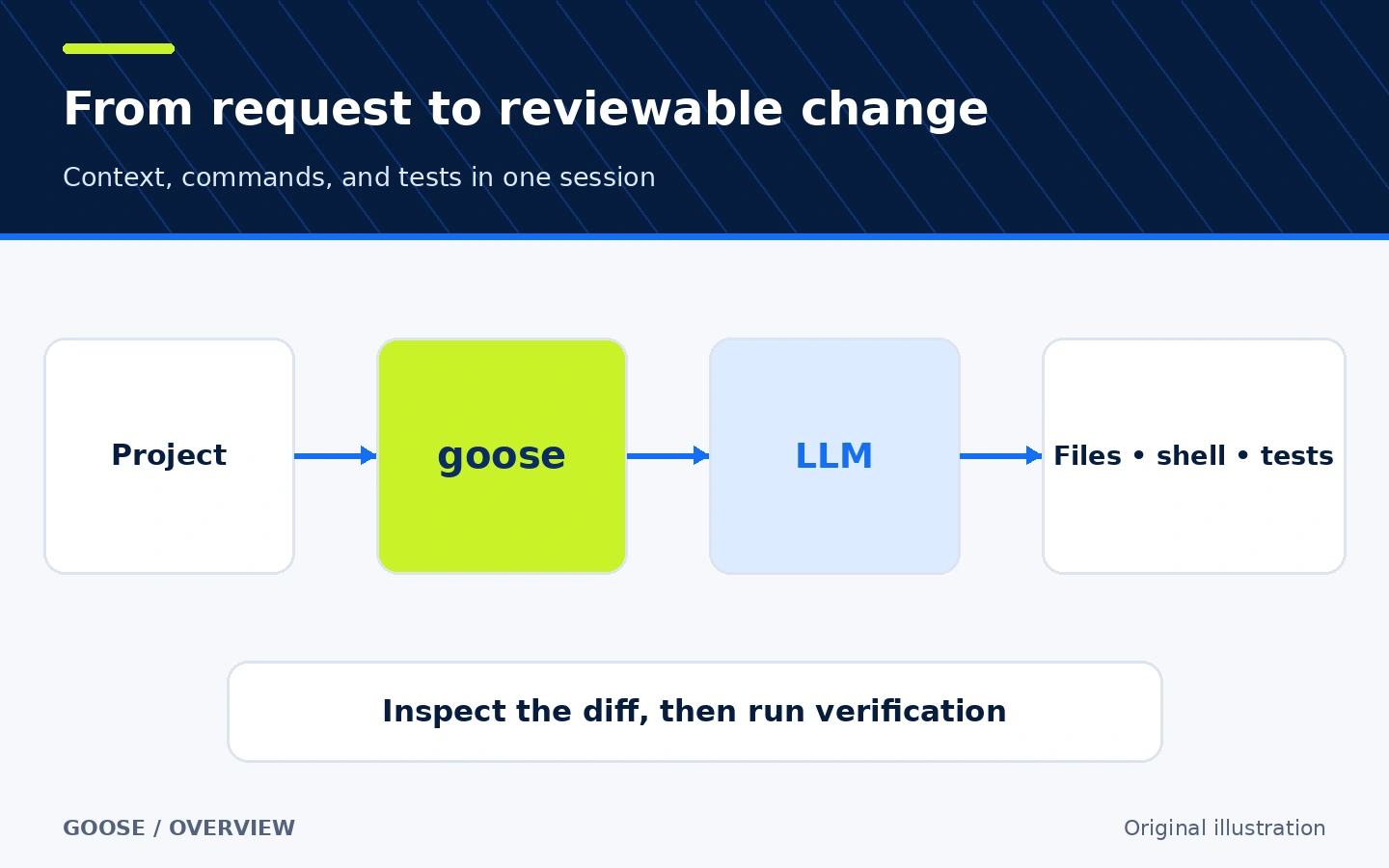
Original workflow illustration, not a goose interface screenshot.
🎯 When is it useful, and what does it add?
Use goose when you want one agent to carry out an inspectable task inside a project: fix a failing test, add a small validation rule, explain code with references, or automate repeatable local steps. It suits an individual developer or small team that wants a choice of model provider and MCP tools without being tied to one closed interface.
Do not give it broad access to a production machine or an untrusted repository. For a short question or suggestion, a tool-free chat may be enough. Do not make the agent the first reader of sensitive files either: what it reads may be sent to the model provider or pass through an external extension, depending on your setup.
🌟 Key features and how to use them
1. An execution session inside a project folder
From the terminal, enter a dedicated worktree and run goose session. goose keeps the session record locally and can use its Developer extension to read and edit files and run commands. Instead of switching among chat, terminal, and editor, the request and tool results remain in one trace.
- Where to begin: the project folder you want as the workspace.
- How to use it: state a specific goal, the relevant behavior or files, and an exact verification command.
- Example: “Find why the email-validation test fails, propose the smallest change, run the focused test, and show the diff.”
- Limit: a session trace is not proof that the change is safe or complete; inspect the Git diff and rerun tests yourself.
2. Approval modes matched to risk
goose has four modes: Chat Only with no tools, Manual Approval for every tool call, Smart Approval based on risk, and Completely Autonomous, which may modify and delete files or use extensions without asking. The documentation says Autonomous Mode is the default. Change it before real work to Manual or Smart with /mode approve or /mode smart_approve, or in Settings.
Within Manual and Smart, each tool can be Always Allow, Ask Before, or Never Allow. Allow reading and directory listing only where needed, ask before writes and system commands, and deny credential or critical-path access. Permissions reduce risk; they do not remove mistakes or prompt-injection risk.
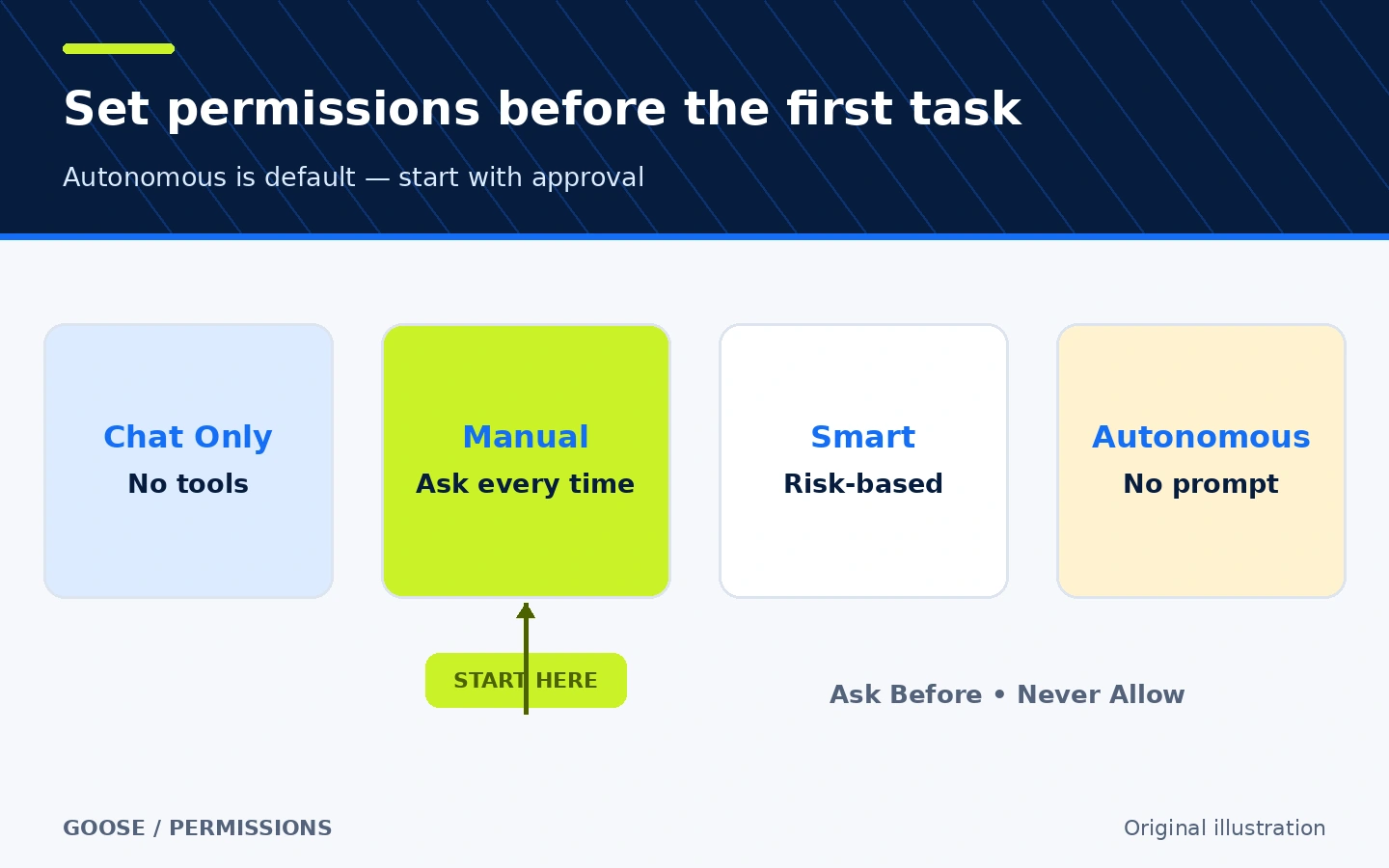
Illustration of the documented modes; selecting the mode remains the user's decision.
3. Choose a cloud or local model
goose itself is free and open source, but it needs a language model. It supports cloud and local providers. You can enter an API key through goose configure, or use Ollama or LM Studio for local inference. The README says it supports more than 15 providers, although model names, prices, and limits change at the provider.
A local route does not make every capability automatic. The model needs tool-calling support and may need a larger context window plus adequate memory and compute. The documentation says a model without tool calling is limited to chat with extensions disabled. With a cloud provider, prompts, code, or tool output placed in context may be sent to that provider; read its retention and privacy terms before using a private repository.
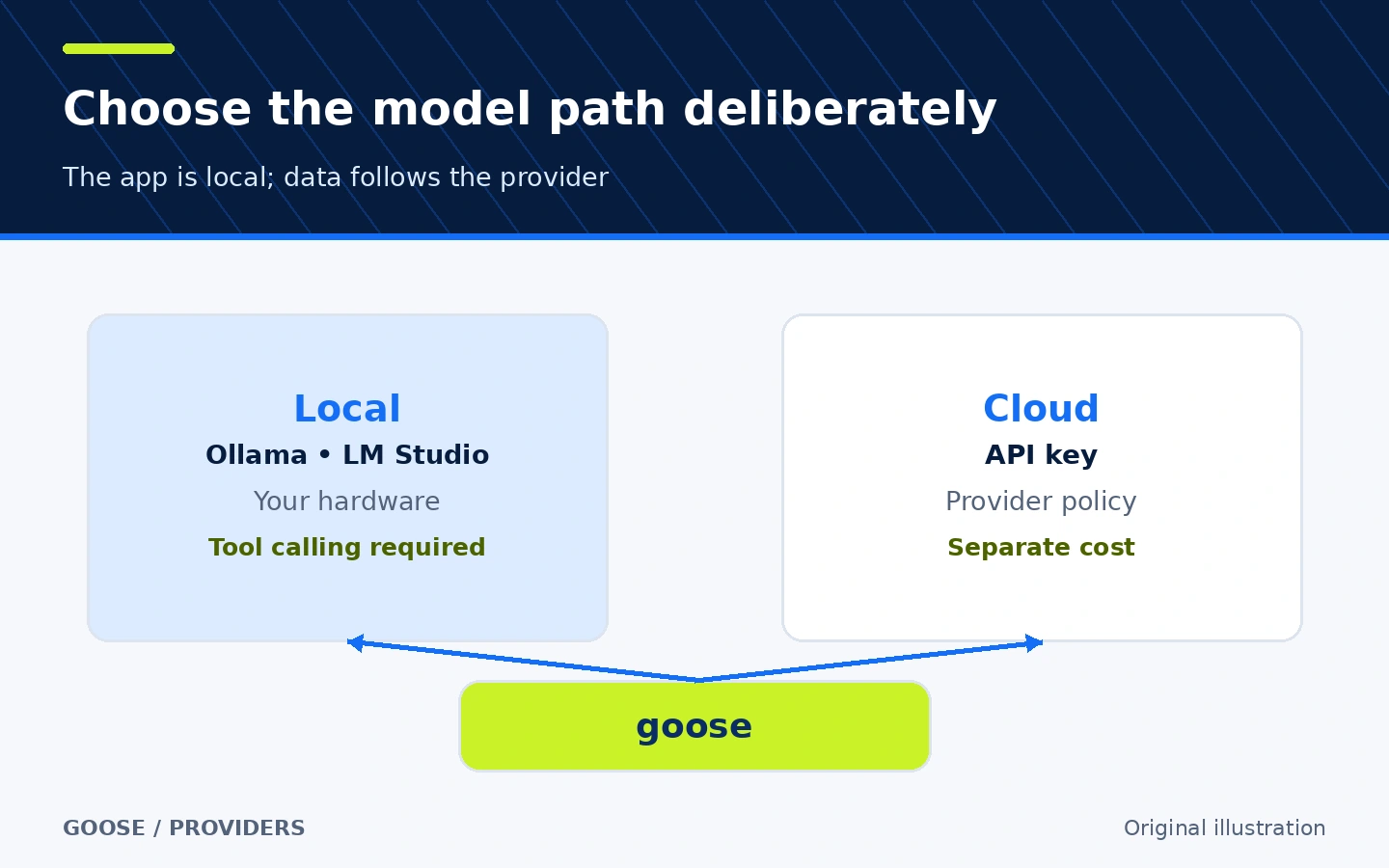
Configuration paths, not a claim that local and cloud models perform equally.
4. Extend the agent with MCP tools
goose treats extensions as tools, and some built-in extensions are MCP servers. You can add an MCP server over stdio or HTTP. Extensions that understand MCP Roots can receive the active session directory. This lets the agent work with a service, database, or internal tool without manually pasting data.
Keep the active tool set small. The documentation recommends fewer than 25 enabled tools in total for performance. Review every extension command, environment variable, and remote endpoint, then set tool-specific permissions. An MCP extension is separate software or a remote service; depending on the authority you grant, it may read files, use the network, or change external data.
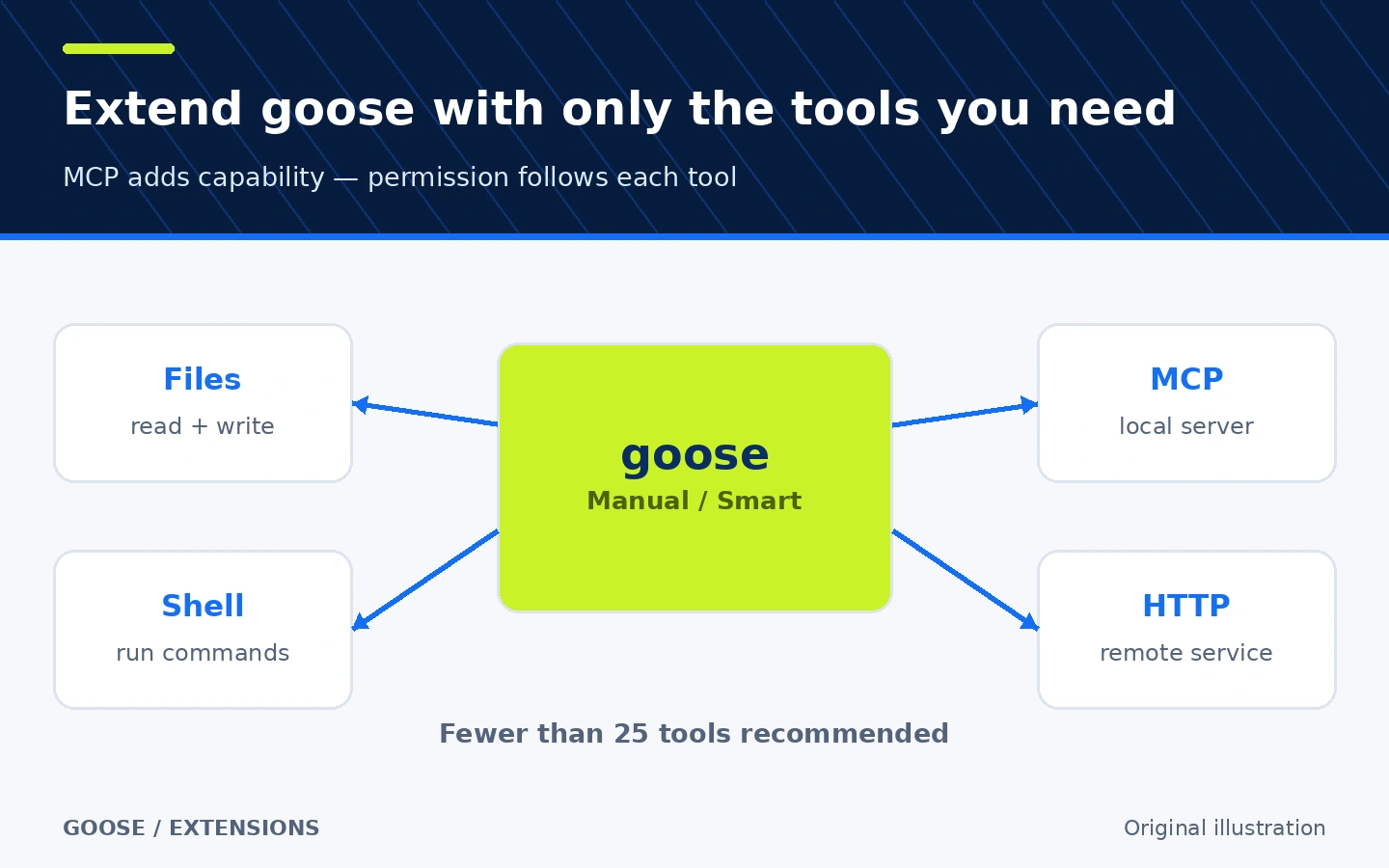
Architecture illustration; tool names are examples, not a guaranteed built-in list.
🪜 Practical example: a small fix with evidence
Illustrative workflow; I did not run it on a real project. Start in a non-production branch or worktree:
- Install goose and configure a model with
goose configure. - Open the project folder in a terminal and run
goose session. - Switch to manual approval with
/mode approve. - Ask: “Read the email-validation code and tests. Do not change anything yet. Summarize the likely cause and propose the smallest fix. After I approve, edit the file, run the focused test, and show
git diff --statfollowed by the diff.” - Review each tool request. Deny commands that leave the project folder or require an unnecessary secret.
- After the edit, inspect the complete
git diffand rerun the appropriate test suite yourself. - If tests pass, review edge cases before merging. A successful command does not prove every behavior is correct.
This prompt separates diagnosis from mutation, requests a concrete check, and keeps the execution decision with you. Do not begin with “fix the whole project.” Split work into small scopes that you can undo.
⚖️ What changes compared with manual work?
| Manual workflow | With goose |
|---|---|
| Move snippets among chat, editor, and terminal | One session can call project tools |
| Restate error context after every command | Command output stays in the session sequence |
| Connect services by hand or with custom scripts | Extensions and MCP expose structured tools |
| Execute every step yourself | The agent proposes and acts within the approval mode |
| Risk is visible because you type each command | Stronger boundaries are needed because the agent chooses commands |
The practical value is less context switching and a preserved execution trace, not guaranteed time savings. A vague task may consume more tokens and attempts, and manual work can be faster for a tiny, obvious change.
🚀 Installation and compatibility
The official CLI installation command for macOS or Linux is:
curl -fsSL https://github.com/aaif-goose/goose/releases/download/stable/download_cli.sh | bash
goose --version
goose configure
This downloads and runs a remote script. Inspect its source or use a package manager if your policy prohibits that pattern. On macOS, the CLI is also available with Homebrew:
brew install block-goose-cli
Desktop applications are available for macOS, Linux, and Windows, and the documentation includes CLI paths for Git Bash/MSYS2 and PowerShell on Windows. I verified stable release v1.55.0, published on October 16, 2026. I did not install the program or execute the example, so this is a repository-and-documentation review rather than an independent performance or security test.
💰 Cost, privacy, and data flow
goose is licensed under Apache-2.0 and does not require a goose subscription. Cost comes from the model provider or your own hardware when running a local model. Some providers publish free tiers, but eligibility and limits can change; this card is not a price guarantee.
Sessions, command history, and logs are stored locally. On Unix-like systems, sessions live in ~/.local/share/goose/sessions/sessions.db, which includes messages and tool calls and results. goose's documentation says its local logs are not sent to external servers. However, requests and information read by the agent may be sent to the LLM provider or an MCP tool, each with its own policy.
Anonymous usage collection is opt-in and requested on first use. When enabled, the documentation says it includes system and version information, provider and model names, extension names and tool-use counts, session metrics, and error types—but not conversations, code, tool arguments, or personal data. Change it in Settings or through goose configure.
The standard configuration stores provider keys in the system keyring. File-based setups may use an environment variable or secrets.yaml. Do not put a key in config.yaml; the documentation says goose does not read provider keys there. Avoid printing secrets into the conversation or command output regardless of storage method.
⚠️ Security and practical limits
The project's warning is direct: an agent can run code and take action on your machine, and it may follow instructions embedded in untrusted content even when those instructions conflict with your task. For sensitive work, use a VM or container with limited capabilities, work on a non-production copy, deny secrets and deployment systems, and require human confirmation for consequential changes.
Start with Manual Approval because the Autonomous default is broad. Review extensions before connecting them and scope them to the required paths and accounts. If you generate a diagnostics report, inspect it before sharing: it may contain conversation history, configuration files, and logs. Approval settings do not replace code review, tests, or a recoverable backup.
🔎 Why this tool today?
I compared goose in the AI-agent category with Gitleaks in secret scanning. Both are open source and run locally, but goose adds a category not represented in the most recent daily entries and shows same-day repository activity plus a recent stable release. Gitleaks' README says it is feature complete, future releases will be security fixes, and the author is shifting focus to Betterleaks. Stars were therefore not the deciding signal.
At verification time, GitHub showed 55,553 stars and 6,427 forks for goose, versus 30,242 stars and 2,312 forks for Gitleaks. These are changing popularity counts, not reviews or proof of quality. goose also appeared under GitHub's ai-agents topic. Claude Skills and DSH Market did not surface an original, authoritative listing that should be used as a factual source for this card.
📚 Sources and verification date
Verified on October 23, 2026 using the original repository, v1.55.0 release, official installation guide, and model-provider guide. I also reviewed approval modes, tool permissions, MCP extensions, session logging, usage data, the security policy, and the Apache-2.0 license.
For comparison, I reviewed the Gitleaks repository and its README development-status notice. I did not audit the source code, install the program, or independently test network behavior.