Syncthing
Active and stableRuns locally ✓No paid APIAutomatically synchronize selected folders between your devices without a central cloud file store, with folder modes and optional file versioning.
sudo apt-get install syncthingIdeal use for this tool
Best for an individual working across two computers or a small team sharing files with trusted devices. It moves folder changes instead of repeating manual copies, while keeping device and storage choices under your control. It does not replace independent backups or collaborative editing, and devices holding the files must be reachable.
Details and illustrated features
You update your notes on a laptop, open the desktop, and find yesterday's copy. You send the file to yourself, compare modification dates, and hope you have not overwritten the right version. Syncthing handles the synchronization part of this problem: choose specific folders and trusted devices, then let changes move between them when they can connect. You do not have to move your work into a central cloud file store, but you do need to understand what happens to edits and deletions.
🧭 What is Syncthing, and how does it work?
Syncthing is an open-source continuous file synchronization program for two or more computers. It runs on the devices themselves and provides a browser-based management interface. That interface manages your local program; it is not an account with a hosted file-storage service. You select folders, authorize devices, and accept the sharing arrangement on the other side.
The program watches and scans for file changes, then compares information with connected devices. Files are divided into blocks, allowing existing blocks to be reused rather than always transferring the entire contents again. Device-to-device traffic is protected by TLS, using a direct connection when possible or a relay when a direct connection cannot be established. This does not make your connection anonymous: discovery services and relays can learn connection metadata, as explained below.
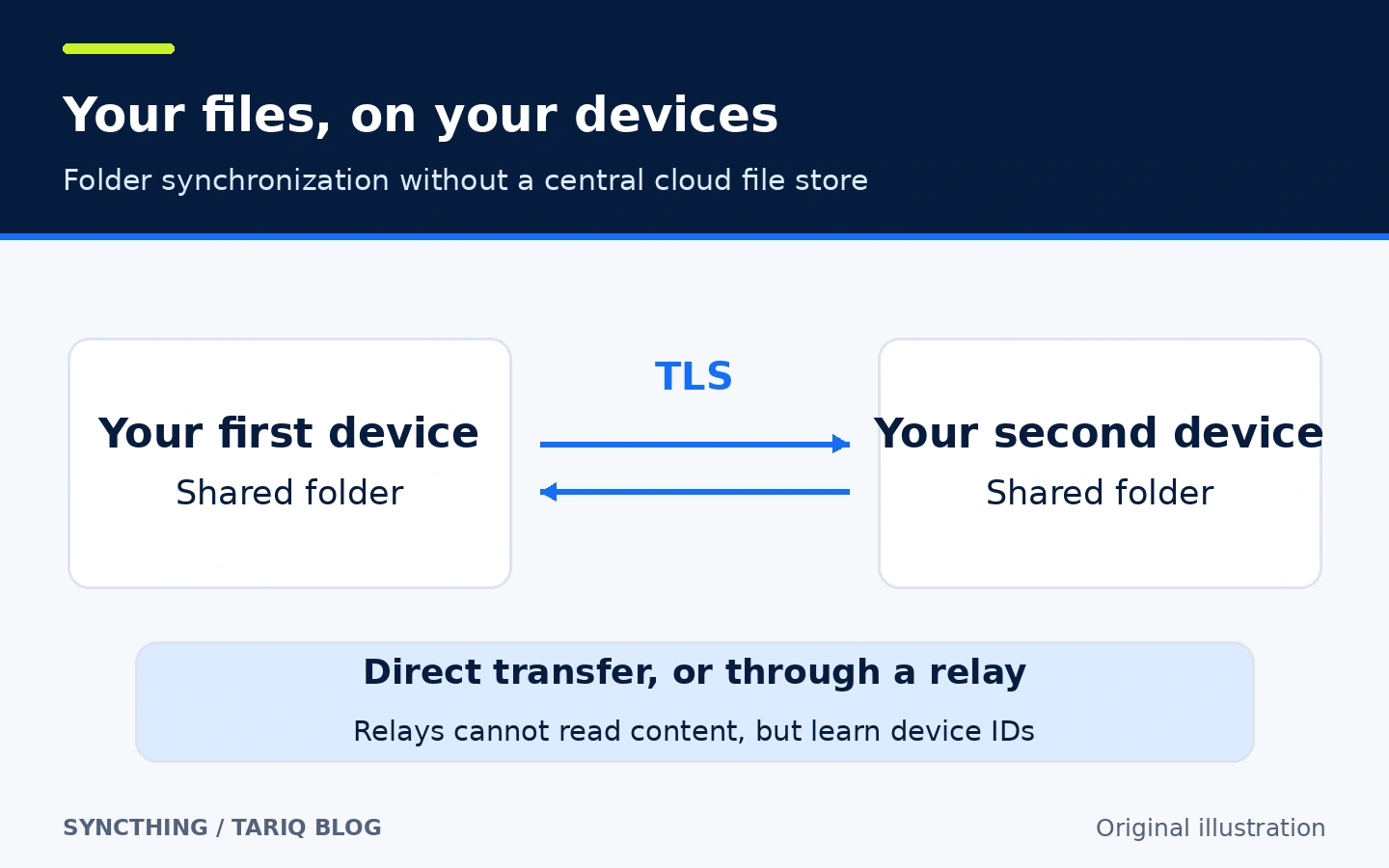
An original explanatory diagram, not a screenshot. The copies on the devices are real files that their users can read or modify according to local permissions.
🎯 Where does it help in your workflow?
A good fit is a clearly scoped work folder you want on two computers you own: Markdown notes, article images, or reference PDFs. Instead of remembering which files you copied yesterday, work in the chosen folder and check synchronization before switching computers. Its added value is removing repeated manual transfers while leaving you in control of the devices and storage locations. This card does not claim a measured time-saving percentage.
A small team can share a folder with trusted devices, but this is not a collaborative document editor or a review system. A peer receives copies of the shared files; Syncthing permissions do not replace an agreement about who edits what. If you need an independent recovery history or protection against losing every device, keep a separate backup, for example with restic, alongside synchronization rather than instead of it.
🌟 Key features and how to use them
1. Mutual device authorization with Device IDs
Each device has an identifier derived from its certificate. Knowing that identifier alone does not allow someone to download files: both devices must know about each other, and the relevant folder must be shared. This helps when you want work materials on a second computer without opening them to every device on the network.
- Where to find it: use
Actions→Show IDto display the device ID, thenAdd Remote Deviceto add the peer. - How to use it: verify the ID through a channel you trust and add the other device on both sides. Select the folder to share and accept it on the receiving computer.
- Illustrative example: add the desktop to the laptop and share only
WritingSync, not the entire user directory. The desktop chooses its own local path; the shared Folder ID is not the local filesystem path. - Important limit: approving a device and sharing a folder are separate decisions. Review authorized devices and do not enable automatic device-introduction options simply to shorten the first setup. IDs are not passwords, but global discovery can make an IP address discoverable from an ID.
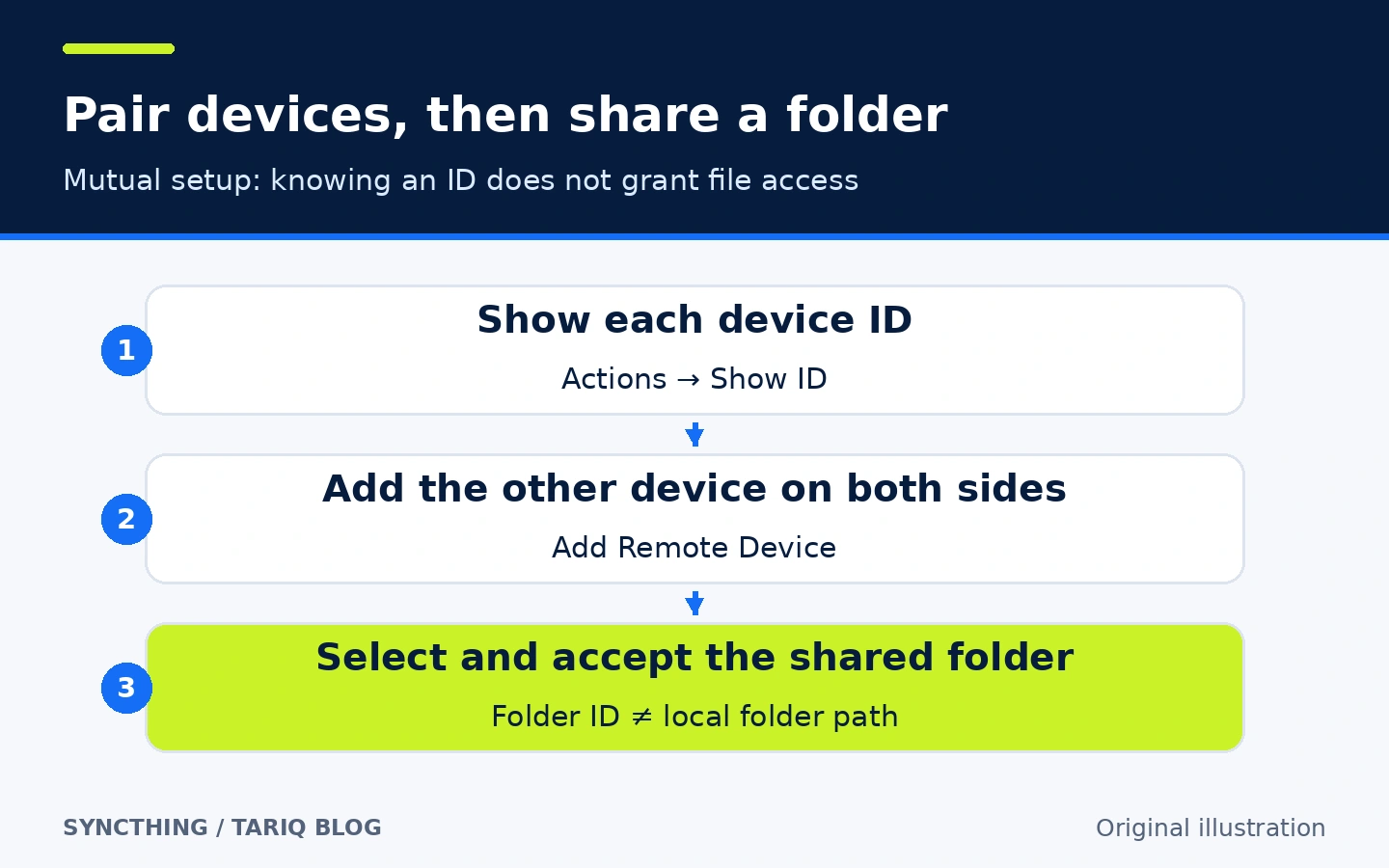
An original diagram of mutual setup. Button names come from the official getting-started guide; this is not a captured interface.
2. Choose the direction of changes with Folder Types
Not every folder needs editing on both sides. Folder settings let you select Send & Receive, which distributes local changes and applies remote changes; Send Only, which distributes local changes without applying other devices' changes to this copy; or Receive Only, which applies remote changes without distributing local edits to the other devices.
- Where to find it: the folder-type setting when editing a folder. The official
Folder Typespage explains each mode. - How to use it: use send-and-receive when alternating work between computers. Use send-only for a reference copy, and receive-only for a computer intended to receive it.
- Illustrative example: prepare final images on the desktop and deliver them to the laptop without publishing accidental laptop edits back to the desktop. The reference device can use
Send Onlyand the laptopReceive Only. - Important limit: receive-only still applies deletions arriving from the source.
Override Changesenforces the sender's state and can overwrite files or delete files missing there.Revert Local Changeson a receiver discards local changes. Neither is a universally safe repair button.
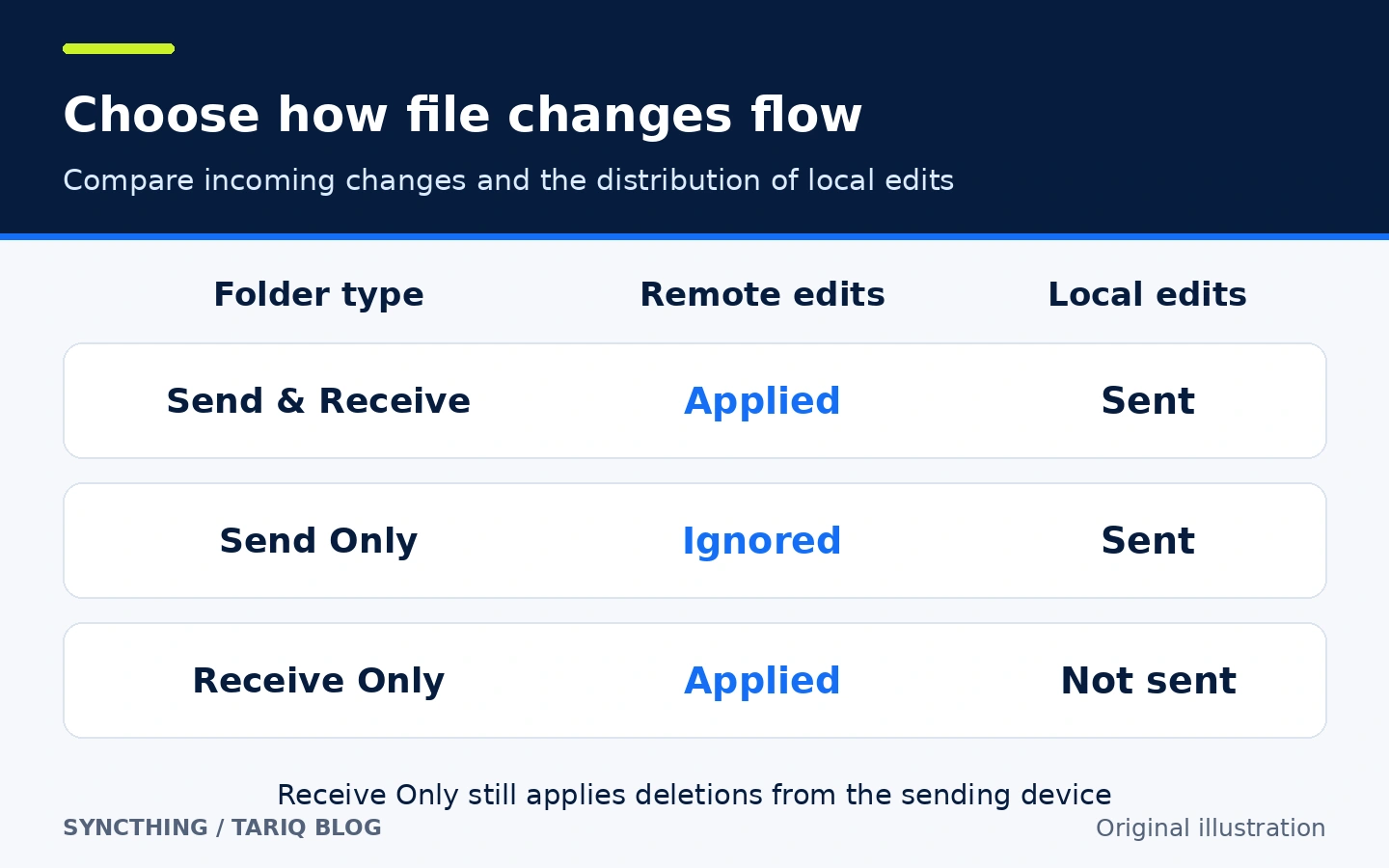
This compares file-change behavior, not every network message or exchange of index information between devices.
3. Keep previous copies of incoming changes with File Versioning
Syncthing can archive a receiving device's previous file before replacing or deleting it because of a change received from another device. Versioning is configured separately for each folder on each device and is disabled by default. It provides a limited opportunity to recover from remote changes, not a complete history of everything you type.
- Where to find it: the folder's
File Versioningsettings, with strategies includingTrash Can,Simple, andStaggered. - How to use it: choose a strategy on the device where you want older copies kept. With
Simple File Versioning, set the number of versions to retain and review cleanup settings and disk space. - Illustrative example: enable
SimplewithKeep Versions = 5on the desktop. When the laptop changesnotes.txtand that change arrives, the desktop's previous copy can move into.stversionsaccording to the configuration. - Critical limit: editing the file locally on the desktop does not archive its previous desktop copy through this feature. The archive can also be lost with the same disk, so it is not an independent backup. Inspect a version before restoring it; restoration can itself become a new synchronized change.
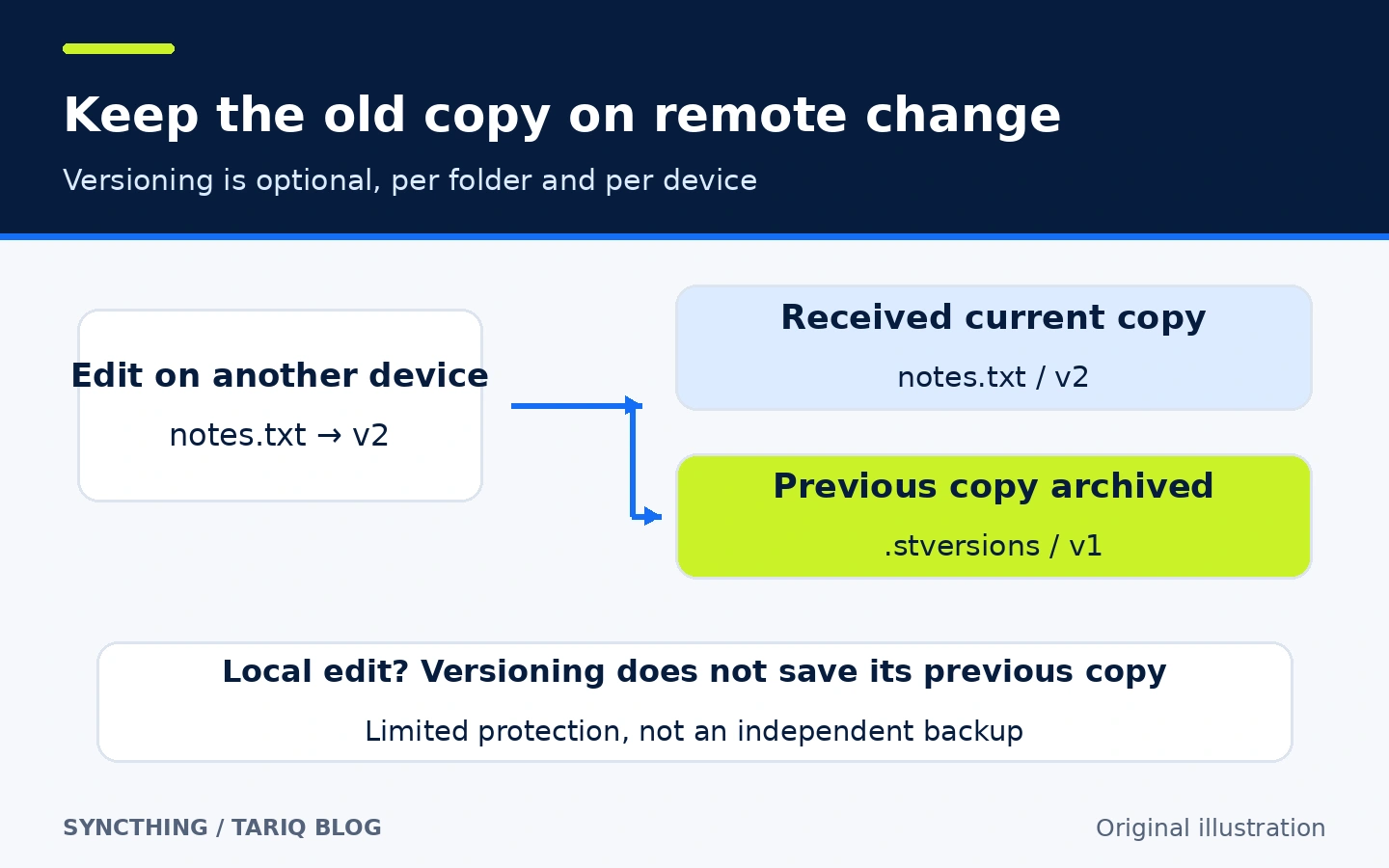
The hypothetical v1 and v2 labels explain the mechanism; they are not results of an executed test.
🪜 Practical example: a writing folder on laptop and desktop
This is an illustrative workflow. We did not install Syncthing or transfer files during this review. Start with nonsensitive test files, not the only copy of your work.
- Make a separate backup of existing work. Prepare a small
WritingSyncfolder containingnotes.txtand a test image. Do not select an entire drive or user directory. - Install the official program on both computers, run it under a normal user account, and open the local management interface. Show each ID and add the other device on both sides.
- Add the folder on the laptop and share it with the desktop. Accept it on the desktop and choose its local location. Check the path carefully so that you do not accidentally merge a populated existing folder.
- For this example, choose
Send & Receiveon both sides and enable versioning where you need it. Wait for scanning and synchronization to finish, then open the file and image on the second computer to confirm the expected contents arrived. - Edit and save
notes.txton one device. Wait for the change to arrive before editing it on the other. A short delay is expected: watching and periodic scans are involved, and every save is not a guaranteed instantaneous transfer. - Delete only an expendable test file to understand deletion propagation and what your selected versioning strategy preserves. Do not test this on important material or assume every local change has been archived.
- If a filename includes
sync-conflict, inspect both copies and merge the intended content manually. Syncthing preserves a conflict copy; it does not understand which paragraph is semantically correct or merge text edits for you.
The useful success check is correct content on both computers and a completed synchronization state, not merely a connected peer. If the other computer is off, delivery must wait until it can connect to a device holding the required copy. A relay is not cloud storage waiting on behalf of your computers.
⚖️ What changes compared with manual transfers?
| Task | Manual workflow | With Syncthing |
|---|---|---|
| Move a file after every edit | Email or copy it and select the destination each time | Configure folders and peers, then monitor automatic change transfers |
| Start on the second computer | Find the latest copy and compare timestamps | Wait for synchronization and inspect the contents before editing |
| Edit simultaneously | One copy can overwrite another unnoticed | A conflict copy may require human review |
| Recover an older copy | Depend on copies you saved yourself | Optional versioning covers specified incoming changes, not every edit |
| Survive disk loss | Keep a separate backup | A separate backup remains necessary |
⚙️ Configuration to review before expanding sharing
Check each folder path, authorized devices, and folder type before adding real work. To exclude selected files, Syncthing supports a .stignore file at the shared folder root. This file itself is not synchronized automatically, so configure rules on each device that needs them. Do not assume ignoring a file erases a copy already delivered elsewhere. Keeping sensitive material outside the shared folder is easier to reason about than relying on an untested exclusion rule.
Older versions consume additional space, and initial scanning and hashing can use noticeable CPU and disk resources. Understand that cost before sharing a very large library. If peers cannot connect, inspect status and error messages and consult the firewall documentation. Do not solve connection problems by disabling network protection or exposing the management interface to the internet.
🚀 Official installation and first run
The stable release verified on 18 October 2026 was v2.1.6, published on 6 October 2026. A straightforward cross-platform route is to download the package matching your operating system and CPU architecture from the official release, unpack it, and run syncthing or syncthing.exe. Running a prebuilt package does not require Go.
For Debian/Ubuntu, the project provides an official APT repository. After configuring its signing key and stable-v2 source as described in the official APT instructions, the documented update and installation commands are:
sudo apt-get update
sudo apt-get install syncthing
These commands change system packages and require administrative privileges; we did not run them. Without the official source configured, they do not guarantee the release described here. Do not select the candidate channel when you want the stable path.
After unpacking a binary, the getting-started guide uses:
syncthing
The first run creates configuration and keys and normally opens the management interface at http://127.0.0.1:8384/. Check the actual address in the startup log if that port is already occupied. Run the program as a normal user, start with a test folder, and pair the second device. For a source build, README documents go run build.go, and the inspected release's go.mod declares Go 1.26.2. Building from source is a different route from running a prebuilt package.
🔗 Compatibility and integration with your tools
The inspected release includes Windows, macOS, and Linux packages for multiple architectures, as well as systems such as FreeBSD. Choose the correct OS and architecture and check release requirements. We did not test every minimum OS version or NAS model; the existence of a Linux package does not establish compatibility with an arbitrary appliance.
The browser interface manages a locally running program. Syncthing is not a Claude Code, Codex, or DSH extension and requires no AI platform. Community wrappers and packages exist and must be checked independently. This card does not extend official support claims to them, assume an official iOS client, or promise that an older phone app is still maintained. The release also provides an official Docker image, but that is not the beginner route recommended here: host directory mounts and networking require separate understanding.
💰 Cost and local operation
The code uses the MPL-2.0 license, and official packages are available without a required storage subscription. Basic synchronization does not require a paid API. You provide disk space, versioning capacity, network bandwidth, and electricity. Community packaging or commercial support can have separate costs that we have not assessed.
Files are stored on the devices you share with, not in a central Syncthing cloud account. However, local operation does not mean no networking. Synchronization needs connectivity, and global discovery, relays, and update checks can contact outside services. Discovery and relays can be configured or disabled, but you may then need explicit connection addresses and manual network configuration to keep peers reachable.
⚠️ Limitations and when to choose something else
Synchronization alone is not a backup: deletions and unwanted edits can propagate. It does not replace Git for code review or a collaborative editor that needs real-time merging. As a precaution, do not begin with a live database directory or constantly changing application data. Copying files during writes does not guarantee an application-consistent snapshot; use that application's export or backup mechanism.
Watch for filenames differing only by case when crossing operating systems. Syncthing may report a case conflict rather than synchronize both. Do not assume every filesystem property is preserved: the FAQ identifies Windows ACLs, for example, as not preserved. For a first trial, avoid managing the same folder with two synchronization products at once; a simple workflow makes changes easier to explain.
🔐 Privacy and permissions before real files
TLS protects device-to-device transport, not the readable copy on an authorized device. Syncthing needs permission to read, write, and delete within managed folders. Do not run it as root or SYSTEM without a carefully justified reason. Protect device keys and configuration: someone who obtains them can impersonate that device. Revoke a lost device on your remaining peers and protect storage and configuration with suitable device encryption.
The security documentation says global discovery is enabled by default and announces the device ID and connection address to its service. Local discovery announces presence on the LAN, while a relay learns device IDs but cannot read the encrypted file contents. Usage reporting is optional and disabled by default according to the documentation; check your installed version's options and report preview. Do not describe Syncthing as having no outside connections or no metadata exposure.
Keep the management interface bound to 127.0.0.1 for a first setup. Changing it to 0.0.0.0 can expose it to the network; this is not required merely to pair devices. If remote administration is necessary, follow the security and firewall guidance with strong authentication and HTTPS. Avoid sharing support screenshots containing sensitive paths or API keys.
📚 Sources and verification date
Last verified: 18 October 2026. We reviewed the repository, release, and documentation, but did not install the program, transfer files, or benchmark it. The eight images are original diagrams covering four ideas in Arabic and English; they are not product screenshots or evidence of a hands-on test.
- Official website and v2.1.6 README: project identity and execution routes.
- v2.1.6 release, go.mod, and LICENSE: release, dependencies, and licensing.
- Getting started and official APT repository: installation and device pairing.
- Folder types, versioning, synchronization and conflicts, and ignoring files: feature behavior and constraints.
- Security principles, GUI listen address, and FAQ: networking, privacy, and filesystem details.
At inspection, GitHub returned 89,482 stars and 5,529 forks for the original repository. Its recorded latest push was 13 October 2026: a repository-activity date, not the date of our test. These are interest indicators, not user ratings or proof of security. We did not verify a cumulative download count.
The editorial comparison also covered MkDocs, a Markdown documentation-site generator under BSD-2-Clause, with release 1.6.1 published on 30 August 2024. It suits a team that needs static documentation, but not one trying to move working files between computers, and hosting or plugin review may be additional work. Syncthing was selected for a clear synchronization use case, recent activity, and a different field after testing, Git, and automation tools—not because it has more stars. GitHub Topics, claudeskills.info, and dshmarket.com were discovery sources, not evidence for feature claims.